How to Set Mouse & Controller Sensitivity for Maximum Accuracy in Battle Royale Games
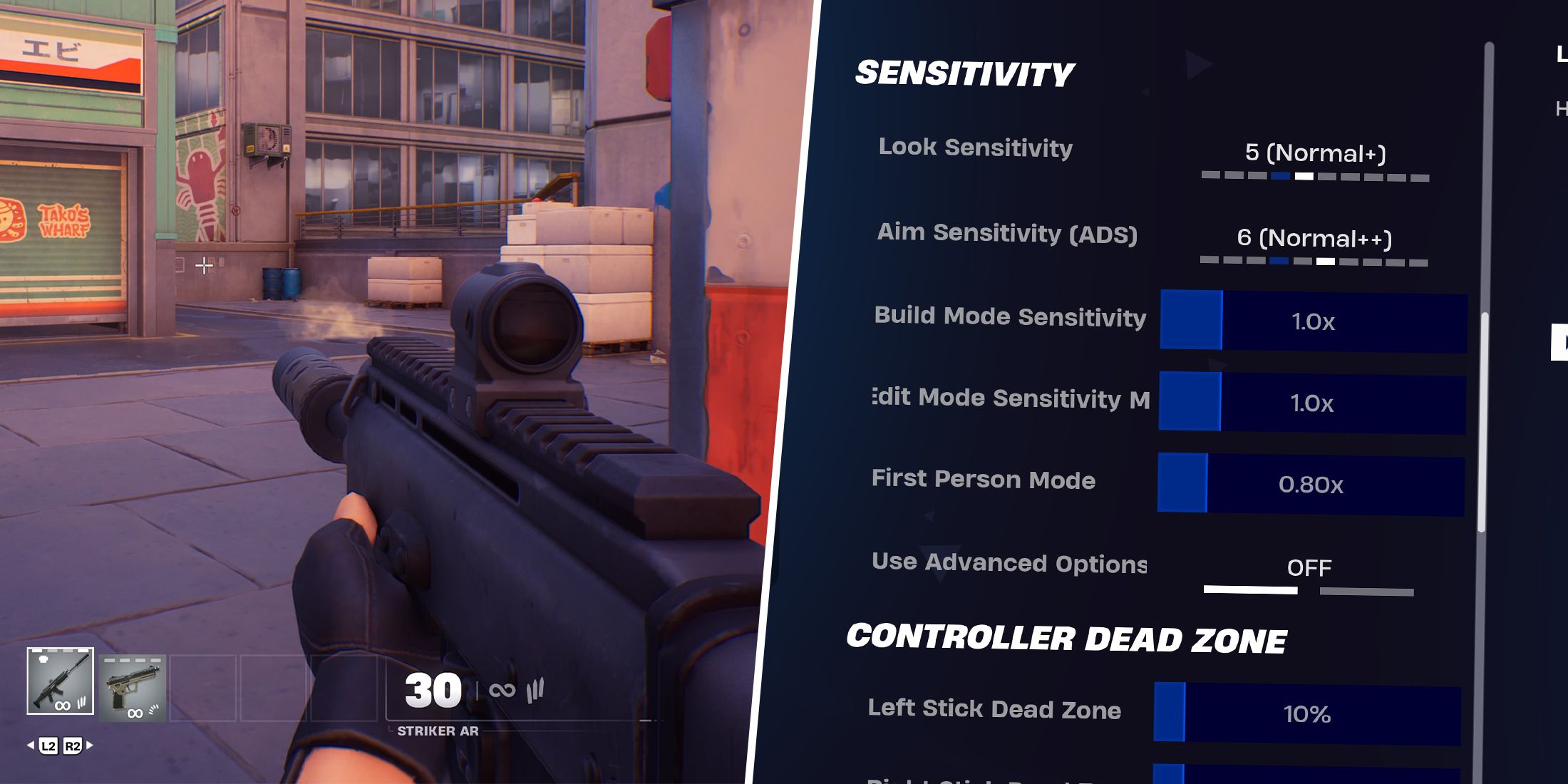
Battle Royale games such as Fortnite, Apex Legends, PUBG, Warzone, and Free Fire demand a unique blend of quick reflexes, precise aim, and situational awareness. Whether you’re playing on PC with a mouse or on console with a controller, one of the most important — and often overlooked — settings that can drastically improve your performance is sensitivity.
Sensitivity settings determine how quickly your in-game view responds to your input device movements. Too high, and you’ll overshoot your targets. Too low, and you’ll feel sluggish when trying to track enemies. Finding the sweet spot can be the difference between a clutch victory and a frustrating loss.
In this guide, we’ll break down how to set your mouse and controller sensitivity for maximum accuracy, and how to adjust it for different phases of Battle Royale gameplay.
1. Understanding Sensitivity Basics

Before tweaking your settings, you need to understand the two core concepts:
• Mouse DPI (Dots Per Inch): On PC, DPI measures how far your cursor moves per inch of physical mouse movement. Higher DPI means faster cursor movement.
• Controller Stick Sensitivity: On console, sensitivity controls how quickly your in-game camera turns when you move the analog stick.
In both cases, you also have in-game sensitivity — a multiplier that adjusts your DPI or stick sensitivity inside the game.
2. The Goldilocks Zone: Not Too High, Not Too Low

Many beginners think a high sensitivity means quicker reaction times. In reality, it often leads to inconsistent aim because small hand or thumb movements can throw off your crosshair.
• Too High → Great for spinning around quickly, bad for precise aiming.
• Too Low → Excellent for sniping and tracking, but slow to react when enemies flank you.
The trick is to find a balanced setting where you can both flick to a target and track smoothly.
3. Mouse Sensitivity Tips for PC Players

Step 1: Start with Your DPI
Most pro players use 400–800 DPI for Battle Royale games. This low DPI gives better control for fine adjustments.
Step 2: Adjust In-Game Sensitivity
• Start with 1.5–2.5 in-game sensitivity for hip fire.
• For scoped aiming, use a lower multiplier (e.g., 0.7–1.0) to make aiming steadier.
Step 3: Test Your “360 Distance”
Place your mouse at one edge of the pad, move it to the other edge, and see how far your in-game character turns. A good starting point is 25–35 cm for a 360° turn.
Step 4: Consistency is Key
Once you find a comfortable setting, stick with it. Changing sensitivity too often prevents muscle memory from developing.
4. Controller Sensitivity Tips for Console Players
Step 1: Base Sensitivity
Most pros use 4–6 for look sensitivity and 3–5 for ADS (Aim Down Sight) sensitivity in games like Warzone or Apex.
Step 2: Fine-Tune ADS
Lower ADS sensitivity allows for more precise adjustments while aiming, which is crucial for long-range fights.
Step 3: Exploit Aim Assist
Console games often have aim assist — lowering your sensitivity slightly can make this feature more effective because your crosshair stays closer to the target longer.
5. Sensitivity for Different Battle Royale Situations
A single sensitivity value might not fit every in-game situation. Consider adjusting or using separate profiles:
• Early Game (Hot Drops): Slightly higher sensitivity helps with quick reactions in close quarters.
• Mid Game (Rotations & Tracking): Balanced sensitivity for smooth tracking of moving enemies.
• Late Game (Long-Range Precision): Lower ADS or scoped sensitivity for pixel-perfect aim.
Some games let you set per-scope sensitivity, which is incredibly useful for Battle Royale where you switch between red dots and 8x scopes.
6. Practice Routines for Sensitivity Mastery
Changing settings is only half the battle — you need to train your aim:
• Aim Trainers: Use apps like Kovaak’s FPS Aim Trainer or Aim Lab for PC to refine your muscle memory.
• In-Game Firing Range: Spend 15–30 minutes daily shooting targets at various ranges.
• Tracking Drills: Follow moving bots or targets to improve enemy tracking skills.
• Flick Shots: Practice snapping to targets quickly without overshooting.
7. Other Factors That Affect Accuracy
• Mouse Pad Size: Low sensitivity requires a large mouse pad for full range of motion.
• Grip Style: Claw, palm, or fingertip grip affects your control over micro-adjustments.
• Controller Thumbstick Shape: Domed vs. concave sticks can change your precision.
• Frame Rate & Input Lag: Higher FPS and lower latency make aiming smoother and more responsive.
8. Common Mistakes to Avoid
• Copying Pro Settings Blindly: What works for a pro may not suit your playstyle.
• Changing Sensitivity Too Often: This resets muscle memory and slows improvement.
• Ignoring Comfort: If your hand or wrist feels strained, adjust sensitivity for comfort first.
• Overcompensating Mid-Match: Stick to your chosen setting during matches — don’t panic and change it after a bad round.
Conclusion
Mastering mouse and controller sensitivity in Battle Royale games is less about finding a “magic number” and more about finding your personal comfort zone and sticking with it. The ideal settings let you quickly react to threats, accurately track moving targets, and land precise shots at long range.
Once you’ve dialed in your preferred sensitivity, focus on building muscle memory through consistent practice. Combine this with good positioning, map awareness, and game sense, and you’ll see a noticeable improvement in your accuracy — and your win rate.
About the Author